Configuring OVOC Web Azure Settings - Single Tenant Setup
This section describes how to configure Azure authentication in the OVOC Web interface for the Main Tenant. When an Azure-authenticated operator logs into the OVOC, they are assigned an OVOC security levels, e.g., 'Operator' based on their Group mapping on Azure.
| ➢ | To configure OVOC operators: |
| 1. | In the OVOC Web, open the Authentication page (System > Administration > Security > Authentication), and then from the 'Authentication Type' drop-down, select AZURE. |
Azure Main Tenant Authentication Settings
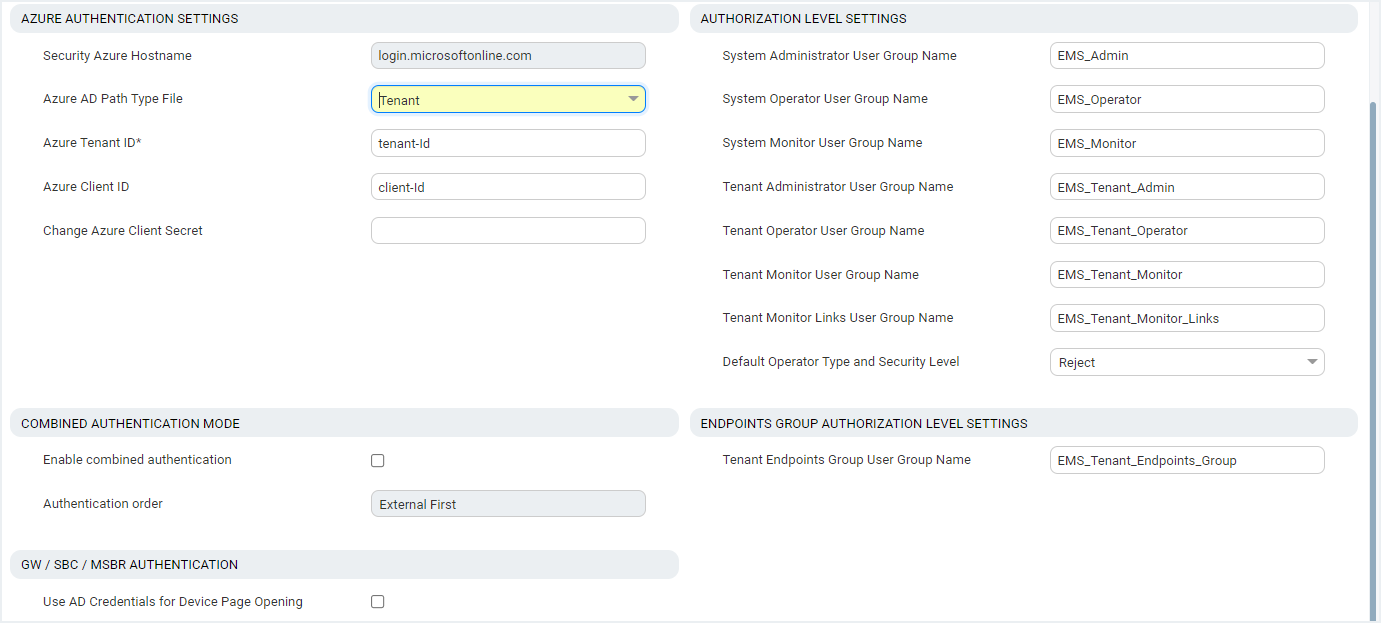
| 2. | From the 'Azure AD Path Type File' drop-down, select Tenant. |
| 3. | Enter the 'Azure Tenant ID' field. Extract value from the Overview page in the application registration for your Single Tenant. |
| 4. | In the 'Azure Client ID' field, enter the ID of the Azure AD client for your Single Tenant. |
| 5. | In the 'Azure Client Secret' field, enter the shared secret (password) that you generated and saved for your Single Tenant. |
| 6. | In the screen section 'GW / SBC / MSBR Authentication', select the option 'Use AD Credentials for Device Page Opening' for the OVOC to sign operators in to AudioCodes devices using the same credentials they used to sign in to OVOC. The AudioCodes device will then perform authentication with the Azure AD and login to the device is attempted with same AD user name / password instead of the local device user name / password. Note that the device must also be configured to authenticate with the same AD. |
When a Main Tenant operator attempts to connect to OVOC, OVOC verifies the mapped Azure User Group to which the operator is a member.
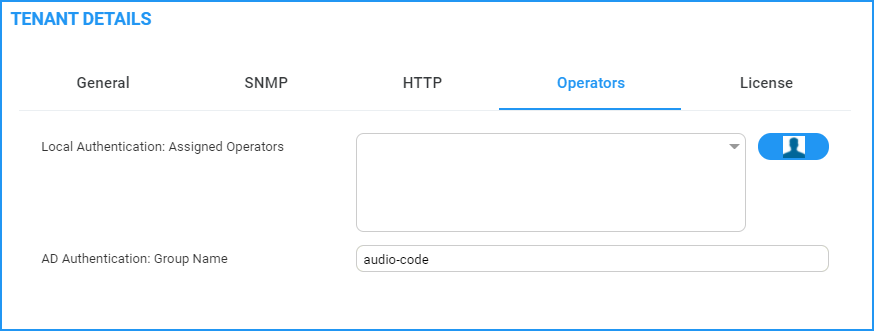
| ● | In the Tenant Details screen under the Operators tab, the parameter AD Authentication: Group Name points to the Azure group which includes the Tenant operators who are authorized to login to OVOC using this method. |
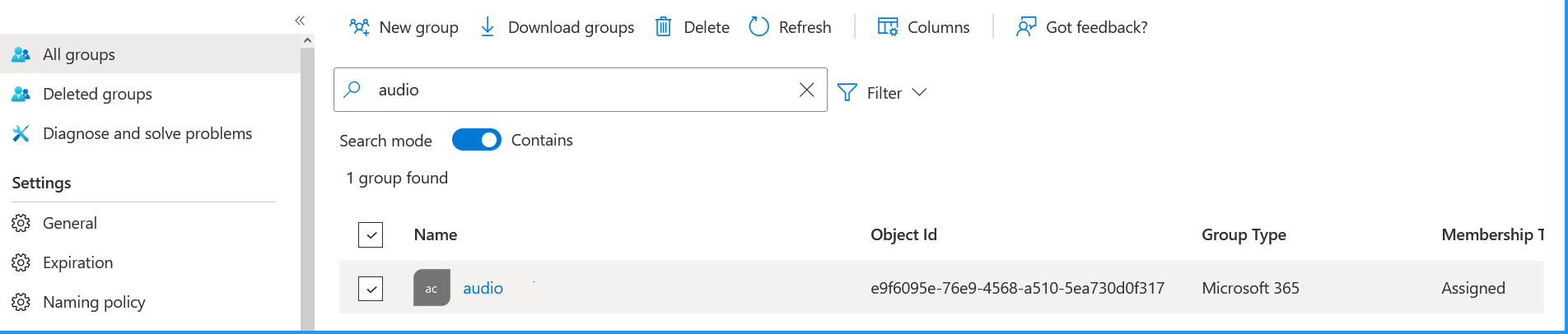
| ● | If the Azure AD successfully validates that the operator belongs to the AD Authentication group (see highlighted group in the example below), its and allowed access. |
AD Authentication Group Name
Matching Group on Azure
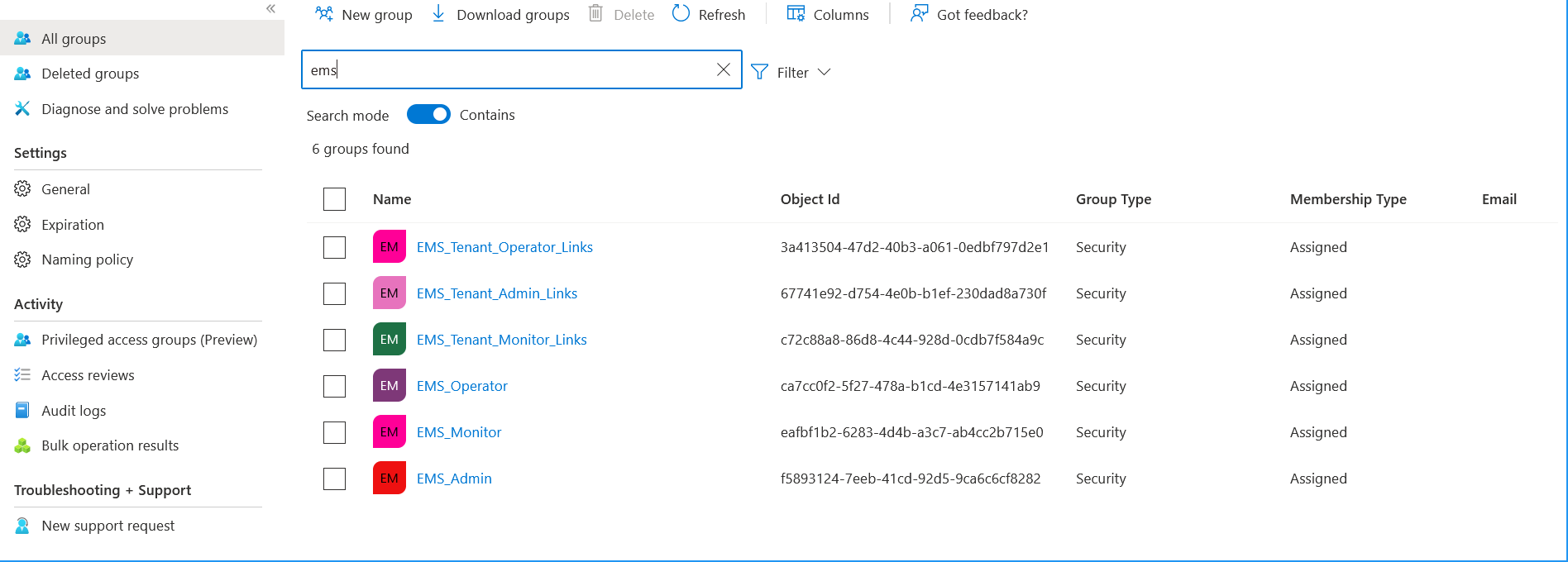
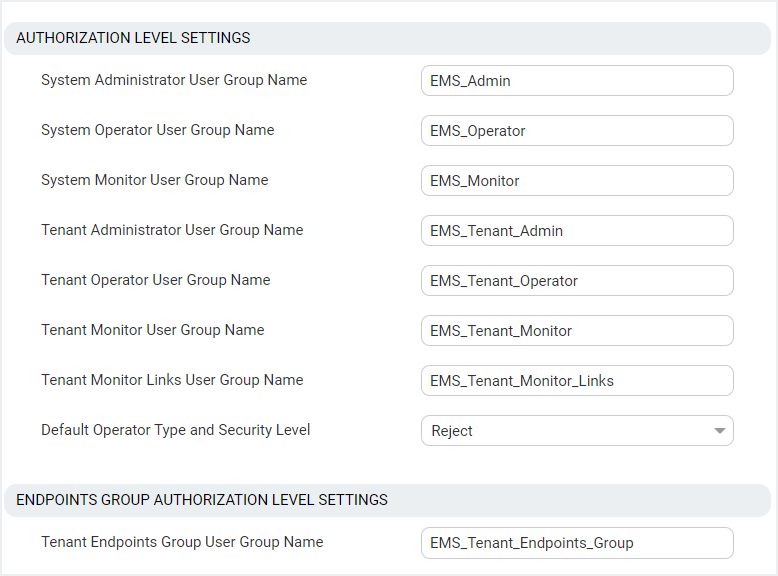
| 7. | In the screen section Authorization Level Settings, configure the user group names exactly as defined on Azure in Create Azure Groups and Assign Members. When an operator is not assigned to a group on Azure, the parameter 'Default Operator Type and Security Level' is applied. |
Authorization Level Settings
Matching Groups on Azure